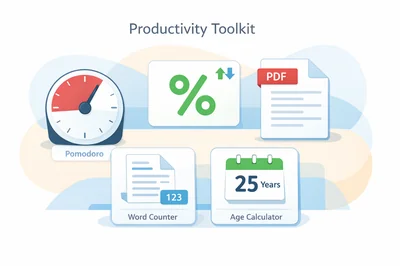
If you only keep a few browser tools bookmarked, keep ones that remove friction: measure time, calculate quickly, and verify text and documents without guessing. Below is a compact, practical workflow using six FastToolsy tools from four categories (Calculators, Time Tools, Text Tools, and PDF Tools). You can use them individually, but they work best as a repeatable routine: focus, compute, write, then verify.
Quick answer: the 6-tool workflow
Use Pomodoro Timer to time-box a task, then reach for the right calculator or counter depending on what you’re working on: Percentage Calculator for discounts/grades/changes, BMI Calculator for health checks, Age Calculator for eligibility and dates. Finish by validating writing and documents with Word Counter and PDF Word Counter.
At-a-glance: which tool to use (and why)
| Tool | Category | Best for | Common mistake it prevents |
|---|---|---|---|
| Pomodoro Timer | Time Tools | Focused work blocks + breaks | Working too long without a break (fatigue) or stopping too often (context switching) |
| Percentage Calculator | Calculators | Percent of, percent change, increase/decrease | Using the wrong base (old vs new) or mixing up “percent of” vs “what percent” |
| BMI Calculator | Calculators | BMI in metric or imperial | Unit confusion (cm vs m, lb vs kg) and misreading categories |
| Age Calculator | Calculators | Exact age as of today or a target date | Off-by-one errors around leap years, month lengths, and cutoff dates |
| Word Counter | Text Tools | Words, characters, sentences, reading time | Missing word/character limits (forms, captions, SEO snippets) |
| PDF Word Counter | PDF Tools | Word/character counts inside PDFs | Assuming a PDF “matches” your draft length without checking |
Step-by-step: a repeatable productivity routine
Step 1: Time-box the task with Pomodoro
Open Pomodoro Timer and set a work interval that matches your task type. The classic cycle is 25 minutes work + 5 minutes break, but you’ll often get better results if you adjust the dial:
- Short admin tasks: 15/3 (fast momentum, quick reset)
- Writing or coding: 25/5 (steady pace, avoids burnout)
- Deep work with long ramp-up: 40/10 or 50/10 (fewer interruptions)
Common mistake: treating the timer like a strict rule. If you’re in the middle of a critical thought, finish the paragraph or function, then break. Use the timer to protect focus, not to interrupt it.
Step 2: Calculate what matters (without mental math)
Once you’re in a focused block, keep calculations fast and verifiable. This is where the calculators earn their place as “quiet helpers” you can trust.
Tool 1: Percentage Calculator (discounts, grades, growth)
The Percentage Calculator covers multiple percentage modes, which is exactly what people mix up under pressure. Use it when you need a quick answer and a sanity check.
How to use it
- What is X% of Y? Use this for discounts, tips, tax estimates, and “percent of a total.”
- X is what % of Y? Use this for performance results (earned vs possible), conversion rates, and completion rates.
- Percentage change: Use this for “from old to new” comparisons (price changes, growth, decline).
- Increase/decrease by %: Use this when you already know the percent adjustment and want the new number.
Mini-example 1: discount math you can copy
You see a price drop from 1,200 to 990. Use percentage change to find the discount rate. If you accidentally use the new value as the base, you’ll get a wrong percent that still “looks plausible.” The tool keeps the base consistent so you can move on confidently.
Mini-example 2: grades and “what percent” confusion
If a student scored 42 out of 50, that’s X is what % of Y. If you instead run what is X% of Y, you’ll be solving a different problem entirely. This is one of the most common percentage mix-ups, and it’s exactly why a multi-mode tool helps.
Edge cases to watch
- Zero as a base: percentage change from 0 is undefined; treat it as a special case in reports.
- Rounding: decide whether you need 0, 1, or 2 decimal places for your use (finance vs casual checks).
- Negative values: percentage change can flip meaning (loss to profit); label outputs clearly in summaries.
Tool 2: BMI Calculator (metric + imperial)
The BMI Calculator is useful when you want a quick screening number and category. It supports metric and imperial inputs, which prevents the easiest-to-make mistake: mixing units.
How to use it
- Choose Metric (kg/cm) or Imperial (lb/ft).
- Enter height and weight.
- Calculate to get BMI and category.
Common mistakes
- Height entry issues: mixing cm and meters, or entering feet into the wrong field.
- Over-interpreting BMI: BMI is a general indicator, not a full health assessment. Use it as a quick reference, not a diagnosis.
Accuracy note
BMI categories are general ranges and don’t account for muscle mass, body composition, age-specific contexts, or clinical history. For medical decisions, follow healthcare guidance and local institution policy.
Tool 3: Age Calculator (eligibility, cutoffs, timelines)
Any time you need an “as of” age (today or a specific date), use the Age Calculator. It’s especially helpful for forms, HR or school eligibility, and deadlines where “close enough” can be wrong.
How to use it
- Enter date of birth.
- If needed, set the exact reference date (deadline, event date, policy cutoff).
- Run the calculation and copy the breakdown you need (years/months/days, etc.).
Edge cases that cause real-world errors
- Leap day birthdays (Feb 29): policies differ on how eligibility is handled; always follow the institution’s rule.
- Cutoff dates: “must be 18 by March 1” is not the same as “turns 18 during the year.” Use the correct reference date.
- Date formats: confirm whether a form expects DD/MM/YYYY or MM/DD/YYYY before you copy results.
Tool 4: Word Counter (hit limits without rewriting twice)
Use Word Counter when word and character limits are part of the requirement: application forms, social posts, meta descriptions, assignments, product listings, or scripts.
How to use it
- Paste your text.
- Check the counts you actually need (words, characters with/without spaces, sentences, paragraphs).
- Trim or expand based on the target limit.
Mini-example: avoiding the “character limit surprise”
Many platforms cut off text by characters, not words. If you only track words, you can still miss a 280-character or 150-character constraint. With a word counter that shows characters with and without spaces, you can match the platform’s rule instead of guessing.
Common mistakes
- Counting the wrong thing: some systems count spaces, some don’t. Check the requirement and use the matching figure.
- Hidden characters: copied text can include extra line breaks or non-breaking spaces that inflate counts.
Tool 5: PDF Word Counter (verify the document, not the draft)
When the “final” version is a PDF, count the PDF, not your original editor text. The PDF Word Counter helps you confirm word and character counts after formatting, headers, and page breaks are applied.
How to use it
- Upload the PDF.
- Run the count and review words, characters, sentences, and paragraphs.
- Use the result to verify compliance (submission limits, abstract length, page constraints).
Edge cases
- Scanned PDFs: text counting works best on text-based PDFs. Image-only scans may not count correctly without OCR.
- Hyphenation and line breaks: PDFs can insert layout artifacts that affect extraction. If counts look off, compare a small copied section with your source text.
Tool 6: Pomodoro Timer (again) as the “glue” between tools
It’s worth calling out that the timer isn’t just for starting work. It’s also how you prevent tool-hopping. A practical pattern is:
- Pomodoro 1: do the task (write, compute, plan)
- Pomodoro 2: verify (percentage check, word count, PDF count)
- Pomodoro 3: finalize (clean formatting, prepare submission, copy outputs)
This turns your tools into a checklist instead of a distraction.
Common mistakes (and quick fixes)
- Mistake: calculating “percentage change” with the wrong base. Fix: use the dedicated percentage change mode in Percentage Calculator.
- Mistake: mixing metric and imperial values in BMI. Fix: pick one system in BMI Calculator and re-enter both fields.
- Mistake: using “today” when the form requires a cutoff date. Fix: set an “as of” date in Age Calculator.
- Mistake: checking word count in a draft but submitting a PDF. Fix: confirm with PDF Word Counter.
- Mistake: overworking past your effective focus window. Fix: run Pomodoro Timer and take the break on purpose.
When you need official-grade accuracy
Fast tool outputs are ideal for planning, learning, and day-to-day checks, but high-stakes contexts can require official rules. For medical, legal, tax, school eligibility, HR policies, and regulated submissions, verify the applicable institution’s policy and required formats before making final decisions.
A simple way to start today
If you want a no-friction setup, bookmark these six tools and run one 25-minute session: start with Pomodoro Timer, do the task, then validate your numbers and text using the relevant calculator or counter. You’ll finish with fewer errors and less rework.
When you’re ready, open the Productivity Tools Collection and pick one extra tool that matches your day (like a countdown timer, a password generator, or a QR code generator) so your toolkit grows naturally with your real needs.
Frequently Asked Questions
Which FastToolsy tools should I bookmark first for everyday productivity?
Start with Pomodoro Timer for focus, Percentage Calculator for quick math, Word Counter for writing limits, and PDF Word Counter for verifying final documents. Add BMI Calculator and Age Calculator if you regularly handle health checks or eligibility dates.
How do I avoid percentage calculation mistakes?
Pick the correct mode: “X% of Y” for discounts/tips, “X is what % of Y” for scores and rates, and “percentage change” for old-to-new comparisons. The most common error is using the wrong base.
Why does my PDF word count differ from my document editor?
PDF extraction can be affected by layout, hyphenation, headers/footers, and whether the PDF is text-based or scanned. Always verify with a PDF-specific counter and sanity-check a small copied section if results look unusual.
What Pomodoro settings work best if 25/5 feels too short?
Try 40/10 or 50/10 for deep work that needs a longer ramp-up. Use 15/3 for short admin tasks. Treat Pomodoro as a dial you adjust, not a strict rule.
Are these tools suitable for official forms or high-stakes decisions?
They’re excellent for planning and verification, but official decisions can require specific institutional rules and formats. For medical, legal, tax, or eligibility decisions, follow the institution’s policy and double-check required date and unit formats.