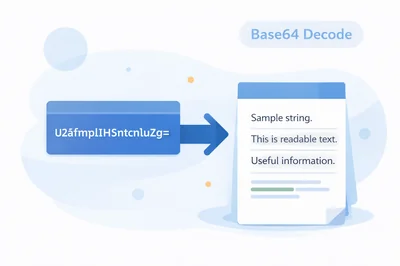
Quick answer: how to decode Base64 safely in your browser
If you have a Base64 string from an API, email, config file, or a data URI and you want the original text, use FastToolsy’s Base64 Encoder/Decoder. Choose Decode, paste the string, and run base64 decode to reveal the readable output. If the result looks wrong, the most common causes are invalid characters, missing padding (=), or decoding binary data as if it were plain text. base64 decode is a quick check when troubleshooting integrations.
This guide explains what Base64 is, when base64 decode is the right move, how to avoid common errors, and how to validate the output before you ship it to production.
What Base64 is and why you see it everywhere
Base64 is an encoding scheme that turns bytes into a set of 64 printable characters so data can travel safely through systems that expect text. It’s used in API payloads, email attachments, tokens, and anywhere binary data needs to fit into JSON, XML, or plain text fields. Because it’s only encoding (not encryption), anyone can base64 decode the same string and recover the original bytes.
Developers often meet Base64 when copying a value that looks like random letters and symbols. The moment you base64 decode it, it becomes obvious: it might be JSON, a short message, an image header, or even a certificate block. Understanding that Base64 is just a transport format helps you choose the right handling and security approach.
When you should use base64 decoding
- You received Base64 from an API response and need to view the underlying text (base64 decode to inspect).
- You’re troubleshooting a webhook signature or token payload and want to base64 decode the non-sensitive parts for debugging.
- You copied a data URI and want the readable portion (or want to separate the prefix before base64 decode).
- You’re migrating data between formats and need to base64 decode a field before converting it to CSV or XML.
- You suspect double-encoding and want to base64 decode once to see if the output is still Base64.
In each case, base64 decode is a diagnostic step: it tells you what you’re really dealing with so you can decide whether to parse JSON, validate UTF-8 text, or treat the output as binary.
Use FastToolsy Base64 Encoder/Decoder
Open the tool here: Base64 Encoder/Decoder. The page includes two modes—Encode and Decode—so you can go both ways. For most debugging tasks, you’ll be doing base64 decode to get back to the original content.
Step-by-step: decode a Base64 string
- Open Base64 Encoder/Decoder.
- Select the Decode tab.
- Paste your Base64 string into the input box.
- Click Decode.
- Review the output and copy it. If you expected JSON or XML, validate it after base64 decode by checking braces, quotes, and structure.
That’s it. The fastest workflow is: paste → base64 decode → sanity check → copy into your editor. If you’re decoding in the middle of an integration issue, keep the tool open in a separate tab so you can iterate quickly.
Two mini-examples you can copy and test
Mini-example 1: decoding a short message
Input: SGVsbG8sIEZhc3RUb29sc3kh. After you run base64 decode, you should see a readable greeting. If you don’t, check whether the string was truncated during copying, or whether an extra character (like a quote mark) snuck in.
Mini-example 2: decoding a JSON fragment from an API
Sometimes an API base64-encodes a JSON object inside a field to avoid escaping. After base64 decode, you might see something like {" user ":" sam "," role ":" admin "}. At that point you can paste the decoded JSON into your logs, or convert it using JSON ⇄ XML Converter if your next system expects XML.
In both examples, base64 decode is just the first step. The real value is what you do with the decoded output next—parse it, validate it, or transform it into the format your pipeline needs.
Common reasons base64 decoding fails
When base64 decode fails or the output looks corrupted, it’s usually not the tool—it’s the input. Here are the most frequent causes and how to fix them.
| Symptom | Likely cause | Fix |
|---|---|---|
| Decoding errors or empty output | Invalid characters or copied whitespace | Remove spaces/newlines; ensure only Base64 characters are present before you base64 decode. |
| Gibberish characters | Binary data decoded as text | If the original was a file or image, don’t expect readable text after base64 decode; treat it as bytes. |
| Almost correct but missing end | Truncated string | Re-copy the full value; Base64 is sensitive to missing characters when you base64 decode. |
| Output seems shifted | Missing padding (=) | Add padding or use a source that preserves it; then retry base64 decode. |
| Works in one tool, not another | URL-safe vs standard Base64 | Replace - with + and _ with / (or vice versa) and base64 decode again. |
Padding: the invisible gotcha
Standard Base64 often ends with one or two = characters. Those are padding markers that help the decoder know how many bytes to reconstruct. Some systems strip padding for compactness. If you suspect missing padding, try adding = until the length is a multiple of 4, then run base64 decode again. Not every payload needs padding, but it’s a common reason a copied string fails.
Line breaks in copied data
Email clients and PDFs sometimes insert line breaks in long Base64 strings. If you paste and base64 decode and it fails, remove newlines or join the string first. You can also paste into a plain text editor to ensure nothing else is being added.
How to interpret the decoded output
After base64 decode, look at the first few characters and ask: what format is this? If it starts with { or [, it’s likely JSON. If it starts with <, it might be XML or HTML. If you see “data:image/” or a lot of non-printable characters, you may be looking at binary data.
A simple habit: after base64 decode, do a quick “structure scan.” For text, check whether the result is valid UTF-8 and whether punctuation looks normal. For JSON/XML, verify that brackets and quotes are balanced. For binary, stop treating it like text and handle it in the appropriate toolchain.
Base64 is not encryption
It’s worth repeating: Base64 is encoding, not security. If a value is sensitive, anyone can base64 decode it. Treat Base64 like a packaging layer: it can help systems move data around, but it doesn’t protect secrets. If you need confidentiality, encrypt before encoding, and manage keys properly.
When debugging, avoid pasting secrets into public places. Use base64 decode on non-sensitive samples, or redact tokens before you share logs with others.
Practical workflows with other FastToolsy converters
Once you base64 decode and identify the underlying format, you can move faster by converting it into what the next tool expects. These workflows are common in real projects:
- Decode Base64 → convert JSON to XML using JSON ⇄ XML Converter for legacy integrations.
- Decode Base64 → turn JSON into CSV using JSON ⇄ CSV Converter for spreadsheet review.
- Decode Base64 → export CSV to XLSX using CSV ⇄ Excel Converter for reporting.
- Decode Base64 → if it’s an image Data URI, re-create an embeddable string using Image to Base64 after you compress the image with Image Compressor.
The idea is simple: base64 decode reveals what you have; the related converters help you reshape it for where it needs to go next.
Handling data URIs and web assets
A data URI often looks like: data:image/png;base64,AAAA… The part before the comma is metadata; the part after the comma is the Base64 payload. If you paste the entire data URI and base64 decode, you may get confusing output. Instead, strip the prefix and decode only the Base64 portion.
If your decoded output still looks like Base64, you may have nested encoding (for example, a Base64 string that contains a JSON field that itself contains another Base64 string). In that case, base64 decode once, inspect, then decide whether a second decode is appropriate.
Character sets, UTF-8, and why text can look wrong
When you base64 decode, the bytes need to be interpreted as text. Most modern APIs use UTF-8. If the original text used a different encoding, characters may appear broken or replaced with � symbols. That doesn’t always mean the Base64 is invalid—it can mean the bytes are fine but the decoding-to-text assumption is wrong.
If you expect non-English characters, test with a known-good sample. If you consistently see garbled output after base64 decode, check the source system’s encoding. Many issues are resolved by ensuring the upstream always encodes UTF-8 before Base64 is applied.
Common mistakes to avoid in production code
- Logging sensitive payloads and then asking teammates to base64 decode them (redact first).
- Trimming Base64 strings (removing trailing =) and then forgetting to restore padding before base64 decode.
- Assuming output is always text; some Base64 is binary, and base64 decode won’t magically make it human-readable.
- Mixing URL-safe and standard Base64 without normalization, causing intermittent base64 decode failures.
- Decoding twice without verifying the intermediate output—always inspect after each base64 decode step.
If you build a consistent approach—normalize, base64 decode, validate, then parse—you’ll spend far less time chasing edge-case bugs.
Troubleshooting checklist
- Remove whitespace, then retry base64 decode.
- Check that the string length is sensible and not truncated.
- Verify whether the string is URL-safe Base64; normalize characters if needed.
- Add padding (=) until length is a multiple of 4, then try again.
- After base64 decode, check whether the output is text, JSON, XML, or binary and proceed accordingly.
This checklist covers the majority of real-world cases. When it still fails, the string may not be Base64 at all—some tokens only look like it. If the alphabet includes characters outside Base64, stop and confirm the format before you keep trying to base64 decode.
Base64 alphabets and common variants
Base64 has a standard alphabet (A–Z, a–z, 0–9, +, /) plus optional padding (=). Many systems keep this standard form, but some modify it for specific transport layers. Knowing which variant you have is the difference between instant success and confusing output.
Standard vs URL-safe Base64
URL-safe Base64 replaces + with - and / with _. This avoids reserved URL characters, which is useful in query strings, filenames, and some token formats. If you see - and _ in the payload, treat it as URL-safe and normalize it if needed before decoding. The underlying bytes are the same; only the alphabet changes.
Base64 without padding
Some systems drop padding to shorten strings. That’s common in compact tokens and storage keys. If a decoder requires padding, add = until the length is divisible by 4. If the string already decodes, you don’t need to force padding—think of it as a compatibility fix, not a requirement.
Padding math in plain language
Base64 works in 24-bit chunks (3 bytes). Each 24-bit chunk is split into 4 groups of 6 bits, and each 6-bit group maps to a printable character. If the input isn’t a multiple of 3 bytes, padding fills the gap: one = means the last chunk had 2 bytes; two == means the last chunk had 1 byte. This is why you often see = at the end of otherwise random-looking strings.
When people copy/paste and accidentally delete the trailing equals sign, the data may still look valid but fail to decode. If you are unsure, count characters: Base64 strings typically have lengths that are multiples of 4 (after padding).
Binary versus text: what “gibberish” really means
A very common misunderstanding is expecting every decoded result to be readable. Base64 can represent any bytes, including images, PDFs, and compressed blobs. If the original content was binary, the decoded bytes will not render as normal characters. That’s not failure—it's a sign you should treat the output as a file, not as text.
Quick identification using signatures
Many file types begin with recognizable “magic bytes.” For example, PNG files start with a fixed header, PDFs often start with %PDF, and ZIP archives start with PK. If your decoded output begins with those patterns (or the tool’s output looks non-text), you likely have binary data. In that case, the correct workflow is to decode to bytes in a programming environment or a file-oriented tool, then open or inspect the file normally.
Where Base64 shows up in real systems
- APIs that embed binary attachments inside JSON to avoid multipart uploads.
- Email and MIME payloads that carry attachments in a safe text form.
- Configuration and secrets files that store certificates or keys as encoded blocks (remember: encoding is not encryption).
- HTML/CSS assets via data URIs, especially for small icons.
- Messaging systems that restrict payloads to printable characters.
Once you recognize these patterns, Base64 stops feeling random. It becomes a practical wrapper that keeps data portable across systems that would otherwise corrupt binary bytes.
Validation after decoding: don’t skip this step
Decoding is only half the job. The next step is validation: confirm the decoded content matches what you expected. If you expected JSON, verify it parses. If you expected CSV, verify delimiters and line endings. If you expected XML, check that tags are balanced and that special characters are escaped.
| Expected output | Fast validation idea | Next FastToolsy step (optional) |
|---|---|---|
| JSON | Look for { } and quoted keys; ensure it isn’t truncated | Convert with /converters/json-csv-converter/ or /converters/json-xml-converter/ |
| CSV | Check commas/tabs and consistent column counts | Convert with /converters/csv-excel-converter/ |
| XML | Look for a single root element and balanced tags | Convert with /converters/json-xml-converter/ (if you need JSON) |
| Image data | Confirm header signature or that it was a data URI payload | Rebuild/inspect with /converters/image-to-base64/ |
| Document text | Scan for unexpected replacement characters (�) | Export to PDF with /converters/text-to-pdf/ if needed |
Security notes for teams
Because Base64 is reversible, treat it as a transport encoding only. Avoid putting secrets into Base64 as a “security layer.” If you see credentials or personal data in encoded form, handle it with the same care as plain text.
In debugging, prefer short, synthetic samples over production data. If you must inspect a live payload, redact user identifiers and tokens. Keep decoded samples out of shared channels unless your process explicitly allows it.
Performance and size expectations
Base64 inflates data size by roughly one third. That’s normal: you’re converting 3 bytes into 4 characters. This matters in APIs and databases where payload size impacts cost and latency. If you are shipping images or large binaries, consider whether a file upload or object storage link is better than embedding Base64 in JSON.
For web performance, data URIs can reduce HTTP requests for tiny icons, but they can also bloat HTML/CSS if overused. If you are embedding images as Base64, compress first and keep an eye on final bundle size.
Quality pitfalls: whitespace, copying, and invisible characters
Some editors insert smart quotes, non-breaking spaces, or zero-width characters that you cannot easily see. These can break decoding. If a string looks correct but refuses to decode, paste it into a plain-text editor, remove all whitespace, and try again.
Interoperability tips across languages and platforms
Different platforms label Base64 differently (standard, URL-safe, MIME). Some accept line breaks; others do not. Some auto-handle padding; others require strict lengths. If you are integrating two systems, confirm which variant is expected on both sides and keep a single normalization step in your codebase.
Extra example scenarios (without code)
Scenario: API returns Base64 for a PDF preview
A common pattern is an API field like preview_base64. If you decode and the output isn’t readable, don’t assume it failed. The correct interpretation is that the decoded bytes represent a PDF. In production, you would write those bytes to a .pdf file and open it. During debugging, just confirm the output begins like a PDF header and move on.
Scenario: data URI in HTML
If you’re handed a long string that begins with data:image/, your goal is usually to extract the image payload or confirm what image type it is. Strip the prefix, decode the payload as bytes, and use your normal image workflow. If the team wants the reverse (embed an image), use the Image to Base64 converter.
Scenario: Base64 inside a CSV export
Some exports embed encoded blobs in a column. Decode a single row to verify the content type, then decide whether to keep it encoded for transport or decode it into separate files. For analysis, it may be better to keep the encoded column and decode on-demand rather than inflate the dataset.
Accuracy note and limitations
The FastToolsy Base64 Encoder/Decoder is designed for quick, in-browser conversion. It’s ideal for small to medium payloads and troubleshooting. Very large strings can be slow because your browser is doing the work locally. If you need file-based decoding, you’ll typically use language tooling or specialized utilities. Still, for day-to-day inspection, base64 decode in the browser is often the fastest path to clarity.
A simple pattern for clean, repeatable decoding
Here’s a repeatable pattern you can use in teams: (1) capture a sample payload, (2) normalize it (remove whitespace, confirm alphabet), (3) base64 decode, (4) validate structure (JSON/XML/text), (5) only then write code to automate it. This workflow prevents you from coding against an incorrect assumption.
Even if you ultimately decode in Python, JavaScript, or Go, doing one manual base64 decode first helps you confirm expectations and reduces debugging time.
Use it now (one-step CTA)
Open Base64 Encoder/Decoder, paste your string, and run base64 decode to see what’s inside. Once you know whether it’s JSON, XML, plain text, or a data URI, you can convert it into the exact format your workflow needs.
Conclusion
When Base64 shows up, it’s usually a packaging decision—not a mystery. The fastest way to understand a payload is to base64 decode, inspect the result, and validate what format you truly have. With FastToolsy’s Base64 Encoder/Decoder, you can do that in seconds, then move directly into your next step—parsing, converting, or debugging—without guesswork.
Frequently Asked Questions
What is Base64 used for?
Base64 is used to represent bytes as printable text so data can be safely stored or transmitted through text-based systems like JSON, XML, emails, and URLs.
Why does my Base64 decoding fail?
Most failures come from invalid characters, inserted whitespace/line breaks, truncated strings, missing padding (=), or mixing URL-safe and standard Base64 alphabets.
Is Base64 encryption or secure?
No. Base64 is encoding, not encryption. It provides no confidentiality and is easily reversible.
What does padding (=) mean in Base64?
Padding indicates the last chunk of data was not a full 3 bytes. One = means 2 bytes in the last chunk; two == means 1 byte in the last chunk.
Why does the decoded output look like gibberish?
The original content may be binary (like an image, PDF, or compressed data). Decoding can be successful even if the bytes are not readable text.