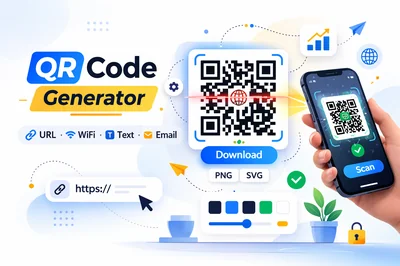
If you’re searching for a code qr generator, you probably want a fast way to turn a link, text, or WiFi details into a scannable QR in seconds. FastToolsy’s QR Code Generator does exactly that: pick a QR type, paste your content, customize size and colors, then download a PNG or SVG that scans reliably.
Because QR codes get used in print, packaging, menus, and digital screens, a good code qr generator needs to focus on two things: correct encoding and high-contrast output that phones can read quickly.
What a code qr generator does (and what it doesn’t)
A code qr generator creates a two-dimensional barcode that stores data such as URLs, plain text, email templates, or WiFi credentials. When someone scans the QR, their device decodes the payload and triggers an action (open a page, join a network, draft an email, and so on).
What it doesn’t do: it can’t guarantee a link stays online, and it can’t fix a destination page that changes or breaks. The QR itself is static; the destination is your responsibility.
You might also see terms like qr gen, qr qr code generator, qr code builder, qr codes generator, or generator qr code. They all describe the same idea: create a QR that scans.
How to use FastToolsy’s code qr generator step by step
FastToolsy’s QR Code Generator is designed to be straightforward. Here’s a reliable workflow you can repeat every time you need a code qr generator output that scans on the first try.
- Choose the QR type: URL, text, WiFi, or email.
- Enter the content: paste your URL or type the exact text you want encoded.
- Pick a size: choose a pixel size that matches where it will be used (screen vs print).
- Set colors: select a dark foreground and light background for strong contrast.
- Create the QR: generate the code and preview it.
- Download: choose PNG for quick sharing or SVG for crisp printing.
- Test scan: scan from multiple angles and distances before publishing.
Quick checks that make a QR scan reliably
The difference between “it works on my phone” and “it works for everyone” often comes down to basic scanning rules. When using a code qr generator, prioritize these checks:
- Contrast: black-on-white (or near black on near white) scans best. Low contrast is a top failure cause.
- Quiet zone: leave clear margin around the QR so scanners can detect edges.
- Appropriate size: tiny codes on print can fail, especially on textured paper.
- Clean destination: avoid URLs that redirect multiple times or require complex login steps.
These checks matter whether you call it a qr barcode generator or a qr code code maker—scanners behave the same.
Two mini examples you can copy
Example 1: Event check-in link. You’re printing badges and want a single tap to open a check-in page. In the code qr generator, choose URL, paste your check-in link, generate an SVG for printing, and test it under indoor lighting. If the link includes tracking parameters, keep it readable and avoid line breaks.
Example 2: Guest WiFi card. For a café or office lobby, choose WiFi, enter SSID, password, and security type. Generate a medium size QR for table tents. Scan it using both iOS and Android. This is where a reliable code qr generator saves you from people typing long passwords.
Common mistakes that break QR scans
Most QR failures come from preventable issues. If your code qr generator output isn’t scanning, check these first:
- Too little contrast: pastel foregrounds on light backgrounds often fail.
- Busy background: placing the QR on a photo or pattern can hide finder squares.
- Over-scaling raster files: stretching a small PNG makes edges blurry.
- Wrong payload: a missing “https://” can turn a URL into plain text in some scanners.
- Copy/paste artifacts: hidden characters can change what’s encoded, especially for WiFi fields.
If you suspect hidden whitespace, clean your input first with Text Cleaner or Remove Line Breaks.
Edge cases: special characters, long links, and formatting
A code qr generator can encode a lot, but edge cases deserve attention:
- Very long URLs: long links produce denser codes that need more print size to scan. If possible, use a short, stable URL you control.
- Special characters: emojis and non-Latin scripts usually work, but testing is essential if your audience uses different devices.
- Email templates: subject/body fields can behave differently across email clients. Keep them short and test on common apps.
- WiFi security type: selecting the wrong type (WEP vs WPA) leads to failed connections even if the QR scans.
Think of this as “scan code generator reality”: the QR can be correct, but the target app still needs to interpret it consistently.
PNG vs SVG: which download should you choose?
FastToolsy lets you download PNG and SVG. Your choice affects quality:
- PNG: best for quick sharing, websites, and screens. Use a large size if it will be displayed full screen.
- SVG: best for print, packaging, posters, and any design that will be resized. Vector edges stay crisp.
If you plan to put the QR in a brochure, using SVG from the code qr generator prevents pixelation.
When you should use a qr barcode generator instead of a text link
A visible link is fine when people can click it. A QR is better when typing is painful or impossible—like posters, receipts, product labels, or a screen in a waiting room. In those cases, a code qr generator turns “type this long URL” into “scan and go.”
- Offline-to-online: menus, flyers, and packaging
- Shared spaces: WiFi access, sign-in sheets, equipment instructions
- Mobile-first flows: app downloads, landing pages, payment pages
Privacy and offline considerations
Many people use a code qr generator for internal documents: visitor badges, inventory labels, classroom handouts, or quick links in a slide deck. In those cases, it helps to keep sensitive data out of the QR. Instead of encoding private notes, encode a short internal URL that requires authentication. That way, if the printed QR is photographed, the content is still protected.
If you need a QR for a device that won’t always have internet access, encode the exact data you need (like a short instruction string) rather than a webpage that might not load. Choosing the right payload is part of using a code qr generator responsibly.
Accuracy note: what “correct” means for QR generation
FastToolsy generates QR codes based on the inputs you provide. “Accurate” means the encoded payload matches your text exactly and the image renders with clear modules and margins. It does not validate whether your URL is safe, whether a password is correct, or whether a policy allows QR use. For official decisions, follow institution policy and test the QR on the exact devices and surfaces you expect users to scan.
Related tools that pair well with a code qr generator
QR workflows often touch other tasks. These FastToolsy tools help you prepare better inputs and assets:
- Image Compressor to reduce file size before you upload QR assets to a CMS.
- PDF Text Extractor to pull clean text from documents before encoding.
- Utility Tools to find other quick helpers alongside QR creation.
Final checklist before you publish
For print, a matte finish usually scans better than glossy stock under bright overhead lights, too.
- Scan your QR from at least two devices and two apps.
- Test under the lighting where it will be used (glare matters).
- Confirm the destination loads fast on mobile data.
- Keep a fallback short URL near the QR for accessibility.
Add a small note near the code such as “Open camera and point at QR” for less technical audiences, and avoid placing the QR too close to a fold, edge, or curved surface where distortion can reduce scan success.Keep a high-contrast version saved so you can reuse it across posters and screens.
When you’re ready, open the QR Code Generator, create your next code qr generator output, download it as PNG or SVG, and do a test scan before you print or share.
Frequently Asked Questions
Is the code qr generator free to use?
Yes. You can generate QR codes without sign-up and download them as PNG or SVG.
Why does my QR code scan on my phone but not on others?
The most common causes are low contrast, missing quiet zone (margin), too-small print size, glare, or a dense code from a very long URL. Test on multiple devices and improve contrast and sizing.
Should I download PNG or SVG?
Use PNG for screens and quick sharing. Use SVG for print and any design that will be resized, because it stays crisp at any scale.
Do QR codes expire?
The QR image itself doesn’t expire when it contains static data. If it points to a webpage, it will only work as long as that destination remains available.