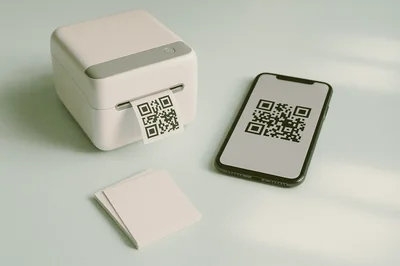
QR Code Generator for Effortless Custom Designs
Create custom QR codes instantly with FastToolsy's QR Code Generator! Generate QR codes for URLs, WiFi, contacts, and more — no sign-up required.
QR codes are one of the rare “small tech” wins: they reduce friction without asking people to install anything, create an account, or learn a new workflow. A quick scan can open a page, join a WiFi network, save a contact, or pull up a short message exactly when it’s needed.
If you have ever copied a long link from a poster, retyped a WiFi password from a sticker, or tried to share a location over the phone, you already know why instant QR code creation is so handy.
What a QR code generator can do in seconds
A QR code is just a compact way to store text. The “magic” comes from choosing the right kind of text so phones interpret it as an action, not just a block of characters.
Common QR content types include:
- URLs
- Plain text
- WiFi network credentials
- Email drafts
- vCard contact details
- SMS messages
When you use a browser-based QR code generator, you typically pick a type, paste or fill in the fields, preview the code, then download it as an image for print or screen use.
Picking the right QR type for the job
The type you choose affects how scanning feels for the person on the other end. A URL QR code is perfect for a landing page. A WiFi QR code is better than printing a password, because it reduces typos and keeps the password from being read aloud.
A few practical matches between goals and QR types look like this:
- Menu or portfolio: URL to a mobile-friendly page
- Support or feedback: URL to a form, or an email QR that pre-fills the address and subject
- Conference badge: vCard so people can save your contact in one tap
- Guest internet: WiFi so visitors join quickly without spelling mistakes
One sentence rule: the best QR code is the one that triggers the next step with the least effort.
A simple workflow for instant QR creation (that stays predictable)
Speed matters, but consistency matters more, especially if the code will be printed or shared widely. A reliable process keeps you from shipping a code that looks great but fails to scan.
A practical workflow:
- Choose the QR content type (URL, Text, WiFi, etc.).
- Enter the content and keep it as short as possible. Shorter data usually produces a less dense code, which scans more easily.
- Set size and error correction based on where the code will be used.
- Customize colors carefully, then test-scan.
- Download in the right format for the destination (web, print, design).
FastToolsy’s QR code generator follows this same idea: instant creation in the browser, no sign-ups, and a focus on quick downloads. That “no account needed” approach also makes it easier to generate one-off QR codes without leaving a trail of personal data behind.
Designing a QR code that scans on the first try
Customization is useful, but QR codes are not the place for subtle design choices. Scanners need clear edges, strong contrast, and enough quiet space around the code to detect it.
After you generate the first version, adjust with these scan-friendly priorities in mind:
- High contrast: Dark modules on a light background tend to scan fastest
- Quiet zone: Leave a clean margin around the code (avoid placing text or graphics too close)
- Sane sizing: Bigger is safer, especially for posters and signage
- Logo discipline: Keep any logo centered and modest in size
- Test scanning: Use more than one phone model if the code will be public
If you only remember one thing, remember contrast.
Error correction: when “more” is the right answer
QR codes include built-in recovery, called error correction. Higher levels allow the code to still work even if part of it is obstructed or damaged.
Use higher error correction when you expect real-world wear (packages, outdoor stickers) or you plan to place a logo on top of the code. Higher error correction can make the code denser, so pair it with a larger size.
A quick checklist you can apply before downloading
Most scanning failures come from a handful of preventable issues. Run through this list after you customize:
- Background color: Keep it light, and avoid patterns
- Foreground color: Keep it dark, and avoid low-contrast tones
- Margin: Make sure the border is not trimmed by the design or printer
- Distance: If people scan from farther away, increase physical size
WiFi QR codes: fast to scan, easy to get wrong
WiFi QR codes are a favorite because they remove the most annoying part of joining guest networks: typing. They also deserve extra care because they can contain sensitive credentials.
Most WiFi QR codes follow a standard text structure that looks like this:
A few notes that save time:
- is the security type (WPA, WEP, WPA3, or )
- is the network name (SSID)
- is the password (omit it for open networks)
- is optional (use if the SSID is hidden)
If your SSID or password contains characters like or you may need escaping, depending on the generator. If you generate the code and scanning fails, double-check special characters first.
One more practical tip: print WiFi QR codes somewhere people can reach with their camera, not behind a counter or under a table.
Choosing the best download format (PNG vs SVG vs PDF)
Where the code will live should decide the file type you download. A QR code used in a slide deck has different needs than a QR code printed on a banner.
Here’s a quick reference:
Format | Best for | Pros | Watch-outs |
|---|---|---|---|
PNG | Websites, email, social posts, slides | Widely supported, easy to share | Can pixelate if scaled up too much |
SVG | Design work and large print | Stays crisp at any size, editable | Some platforms do not accept SVG uploads |
Print-ready documents | Great for printers and layouts | Less convenient for quick web publishing |
If you are unsure, pick PNG for screen use and SVG (or PDF) for anything that might be printed bigger than a business card.
Privacy and safety: treat QR content like you would a password
A QR code can contain sensitive data: WiFi credentials, private links, internal documents, even personal contact details. The fastest way to regret a QR code is to generate it on a service that stores what you type.
If privacy matters, client-side generation is the simplest option because the content can stay on your device.
A few privacy-first habits worth keeping:
- Keep sensitive inputs local: WiFi passwords and private links should not be sent to unknown servers
- Avoid “tracking” redirects unless needed: Direct links reduce data collection and reduce points of failure
- Print responsibly: Do not put confidential data into a QR code on a public poster
FastToolsy is built around quick, in-browser tools with a privacy-first approach, which fits well when you want to generate a QR code without creating an account or uploading content to a dashboard.
Customization that looks good without breaking scan reliability
People love gradients, rounded modules, and center logos. All of those can work, but only if you keep the QR code readable.
A safe customization approach is:
- Keep the background solid and light
- Use one dark foreground color, or a subtle gradient that stays dark throughout
- Increase error correction if you add a logo
- Preserve the corner “eyes” and the quiet zone
When a design is meant to represent a brand, it can help to match just one element (a single brand color or a small icon) rather than redesigning the whole matrix.
Here are quick guardrails you can apply while styling:
- Logo size: Keep it small and centered
- Color contrast: If you squint and the code fades, scanners will struggle too
- Busy backgrounds: Avoid placing the code on photos or textured patterns
FastToolsy use cases that benefit from instant QR generation
QR codes show up everywhere once you start looking. They also show up in moments when you do not want to install software or wait for a design tool to open.
Common scenarios where a free, browser-based generator helps:
- A student linking to a shared doc for a group project
- A creator adding a link to a media kit on a one-page flyer
- A small event printing WiFi access for attendees
- A developer sharing a test environment URL during a demo
FastToolsy also supports multilingual users, including Arabic and RTL readers, which can matter when you are creating signage or handouts for mixed-language audiences.
Troubleshooting: why a QR code looks fine but will not scan
If a code fails, it is usually not random. It is often one of these:
- The code is too small for the scanning distance
- The quiet zone was trimmed by a layout or printer
- Foreground and background colors are too close in brightness
- A logo covered critical parts of the code
- The content is too dense, making modules too tiny
When that happens, fix it in this order: increase size, restore margin, improve contrast, then reduce content length.
If you are generating a QR code for WiFi and it scans but does not connect, re-check the security type and any special characters in the SSID or password.
Putting it into practice
If you need a QR code right now, start with the simplest version: pick the type, add the content, download a PNG, and test-scan it with your phone camera.
Once it scans instantly, then adjust styling and export format to match where it will be used.