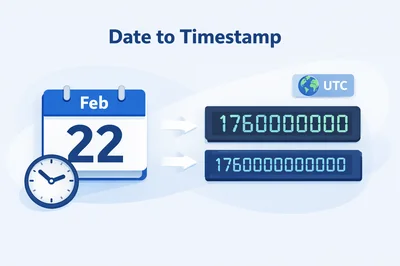
Need a Unix timestamp fast? Enter a date and time, pick the output you need (seconds or milliseconds), and copy the result. FastToolsy’s Date to Timestamp converter helps you match what your API, database, analytics export, or log parser actually expects.
What “date to timestamp” means
A timestamp is a numeric representation of time. In most developer workflows, “timestamp” means Unix time: the number of seconds (or milliseconds) since January 1, 1970 (UTC). Converting a human-readable date like “2026-02-22 09:30” into Unix time makes it easy to compare, sort, store, and send across systems.
The tricky part isn’t the math. The tricky part is format agreement: one system expects seconds, another expects milliseconds, and a third assumes UTC while you typed local time. A good converter makes those assumptions visible so you don’t ship silent time bugs.
Seconds vs milliseconds
This is the most common real-world mistake: mixing seconds and milliseconds. A Unix timestamp in seconds is typically 10 digits for modern dates. A Unix timestamp in milliseconds is typically 13 digits.
- Seconds: often used in APIs, logs, and many backend languages by default.
- Milliseconds: common in JavaScript environments, browser analytics, and some event pipelines.
If your converted number looks “too large” by about 1000×, you likely produced milliseconds when the destination expects seconds (or vice versa). When debugging, sanity-check by converting both and comparing the digit length.
How to use FastToolsy’s Date to Timestamp tool
Use this workflow when you need a timestamp you can trust:
- Open the tool: Date to Timestamp.
- Enter the date and time in the exact values you want represented.
- Select timezone behavior (if offered): confirm whether you mean local time or UTC.
- Choose output format: Unix seconds, Unix milliseconds, or a standard string format like ISO 8601.
- Copy the result into your code, query, spreadsheet, or integration.
If you’re moving time values between different tools, it helps to keep both the human-readable version and the numeric timestamp side by side during testing.
Two mini-examples you’ll actually run into
Example 1: API requires epoch seconds
You’re calling an endpoint that accepts start and end parameters in epoch seconds. Your project manager gives you a range like “Feb 22, 2026 09:00 to 11:00 Cairo time.” Convert each boundary to seconds, confirm timezone interpretation, then paste into your request. If the API returns empty data, re-check whether it expects UTC boundaries or local boundaries.
Example 2: JavaScript analytics expects milliseconds
You’re debugging event ingestion and see a timestamp like 1760000000000. That’s almost certainly milliseconds. Convert your test event date to milliseconds and compare. If you accidentally send seconds, your events may appear in the far past (1970-era) or cluster at the wrong time.
Timezone and DST: the silent edge cases
Timezones are where “looks correct” can still be wrong. A timestamp always represents an absolute moment, but a typed date-time like “2026-03-27 02:30” may be ambiguous or even invalid in some regions because of Daylight Saving Time (DST) shifts.
- Ambiguous times: during “fall back,” a local hour repeats. A time like 01:30 can occur twice with different offsets.
- Missing times: during “spring forward,” an hour disappears. A time like 02:30 may never occur locally.
When this matters (scheduling, billing cutoffs, compliance logging), treat timezone selection as a first-class input. If you’re converting a policy deadline, use the institution’s official timezone rule and document it in your ticket or notes.
Common mistakes (and how to avoid them)
1) The off-by-1000 error
If your result is 13 digits but the system expects 10, divide by 1000 (milliseconds to seconds). If your result is 10 digits but the system expects 13, multiply by 1000 (seconds to milliseconds). Don’t guess: confirm in the destination system’s docs or sample payloads.
2) Assuming the date input is UTC
Some tools interpret your typed date as local time, others interpret it as UTC. The difference can be hours, and that difference becomes a production incident when it shifts a report window or a billing period. If you need UTC, explicitly choose UTC and keep the ISO output around for verification (ISO strings clearly show the “Z” or offset).
3) Copying a formatted date with hidden characters
Copy/paste from documents can include non-breaking spaces or unusual separators. If a converter rejects your input or produces unexpected results, retype the date or paste into a plain text editor first.
4) Mixing date-only with date-time
A date like “2026-02-22” without a time usually implies midnight, but midnight where? In local time that could be a different UTC moment than midnight UTC. If you need a precise moment, include a time and confirm timezone.
Practical formats you may need alongside Unix time
Unix time is great for storage and comparisons, but humans and many protocols use standardized strings. A strong workflow is converting to Unix time and also generating a string format for verification.
- ISO 8601: the most common interoperable format (often used in APIs and logs).
- RFC 2822: used in some email and legacy contexts.
- Readable local datetime: helpful for copy/paste into tickets or reports.
When debugging, keep an ISO string with its offset next to your Unix value. That one step prevents most timezone confusion.
Accuracy note: what this tool can and can’t guarantee
This converter produces timestamps based on standard calendar rules and the timezone/offset interpretation you select. If you type a local time that falls into a DST gap or a repeated hour, different systems may resolve it differently. For official decisions (deadlines, legal cutoffs, payroll, academic submission windows), follow the institution policy and timezone rules rather than relying on an inferred interpretation.
When you should use Date to Timestamp (and when you shouldn’t)
Use it when you need quick, correct conversions for development, analytics, QA, data cleanup, or scheduling coordination. Don’t use it as the only source of truth for contract deadlines or regulated reporting without confirming your organization’s timezone policy and rounding rules.
Helpful related tools for time workflows
If you’re working with timing and productivity alongside conversions, you may also like FastToolsy’s time utilities such as Date to Timestamp for conversions and other tools across the platform like Age Calculator or Salary After Tax Calculator when your workflow involves dates and reporting.
Open Date to Timestamp, convert your datetime to Unix seconds or milliseconds, and copy the exact format your system expects.
Frequently Asked Questions
What is a Unix timestamp?
A Unix timestamp is the number of seconds (or sometimes milliseconds) since January 1, 1970 UTC. It’s widely used for storing and comparing times across systems.
How do I know if I need seconds or milliseconds?
Check the destination system’s docs or sample payloads. A modern timestamp in seconds is usually 10 digits; in milliseconds it’s usually 13 digits. Mixing them causes values to be off by 1000×.
Why do timezone and DST affect timestamp conversion?
A timestamp represents an exact moment, but a local date-time can be ambiguous (repeated hour) or invalid (missing hour) around DST changes. Always confirm the intended timezone/offset.
Can I convert a date without a time?
Yes, but a date-only value typically implies midnight, which depends on timezone. If you need a precise moment, include a time and confirm whether you mean local time or UTC.
Is this safe to use for official deadlines?
It’s useful for accurate conversions, but for official decisions (deadlines, payroll cutoffs, legal submissions), follow the institution’s stated timezone policy and rules.