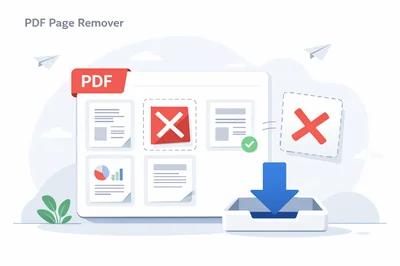
If you need to Delete Pages From PDF without installing software, the quickest approach is to use a browser-based page remover: upload your file, click the thumbnails you want gone, and download a clean copy. That’s the whole job—fast, private, and reversible as long as you keep the original.
On FastToolsy, the PDF Page Remover lets you Delete Pages From PDF in seconds. Your pages load as thumbnails, you tap the ones to remove, and your updated PDF is generated right in your browser so your document stays on your device.
Quick answer: remove the pages you don’t want
To Delete Pages From PDF reliably, you need three things: a clear view of every page, a way to select multiple pages quickly, and an export step that preserves the remaining pages. FastToolsy’s page-removal flow is designed around those basics: thumbnails for certainty, click-to-select for speed, and a single download for the final file.
- Best for: deleting blank pages, removing a cover sheet, or trimming a scan before sharing—i.e., when you only need to Delete Pages From PDF, not redesign the whole document.
- Runs locally in your browser, so you don’t need to install apps or sign in.
- Produces a new PDF while leaving your original untouched (so you can always revert).
Use FastToolsy to delete pages in a PDF step by step
Here’s the simplest workflow to Delete Pages From PDF using PDF Page Remover:
- Open the tool page in your browser.
- Upload your PDF (drag-and-drop or browse).
- Wait for the thumbnails to load.
- Click any page you want removed; selected pages are highlighted.
- Review your selection one last time.
- Generate and download the updated PDF.
That’s it. If your goal is specifically to Delete Pages From PDF, you don’t need to worry about margins, fonts, or layout—the tool keeps the remaining pages intact and simply drops the pages you marked for removal.
How page deletion works (and what it does not do)
When you Delete Pages From PDF, you are changing the page sequence, not rewriting the content. Think of it like removing slides from a deck: the pages you keep should look exactly the same as before, just without the unwanted pages in between.
A good page remover also avoids hidden “gotchas,” like accidentally rasterizing the entire PDF (turning text into images). For ordinary, text-based PDFs, the goal is to preserve selectable text, links, and embedded fonts wherever possible—while removing only the pages you chose.
What you can expect after deleting pages
- Page numbers may change (because the document is shorter).
- Internal links and the table of contents may still point to old pages in some PDFs; this depends on how the original file was built.
- File size often drops, especially when you remove image-heavy pages or scanned pages.
Common reasons people need to delete PDF pages
Most users decide to Delete Pages From PDF for practical, everyday cleanup—especially before sending a file to a client, uploading to a portal, or printing.
- Removing blank pages created by a scanner or converter
- Deleting a title page or internal notes before sharing
- Trimming appendices to create a shorter version for review
- Removing duplicates after combining multiple PDFs
- Dropping pages that contain sensitive information you don’t want included
If you’re preparing a document for submission, being able to Delete Pages From PDF quickly can prevent rejections caused by extra pages, wrong order, or irrelevant attachments.
Picking the right pages: practical selection tips
The biggest mistake when you Delete Pages From PDF is selecting the wrong page. Thumbnails help, but these habits make it even safer:
- Zoom in on thumbnails before selecting pages that look similar (like repeated forms).
- If your PDF has a cover and a contents page, remove carefully—those are easy to mis-click.
- Work in small batches for huge PDFs: select a few pages, double-check, then continue.
- Keep the original file name and save the edited version as a new file so you can backtrack.
FastToolsy highlights pages you marked for removal, which makes it easier to confirm you’re about to Delete Pages From PDF correctly.
Mini-examples: two real-world delete-page scenarios
Example 1: Remove blank pages from a scan
You scanned a 12-page document, but the scanner inserted blank pages after each sheet. To Delete Pages From PDF cleanly, upload the PDF, click every blank thumbnail, and download the updated file. The remaining pages stay in order, and printing becomes much easier.
Example 2: Remove a confidential page before emailing
You have a proposal PDF where page 9 contains internal pricing notes. To Delete Pages From PDF safely, remove that page and export a client-ready version. Keep the original untouched, and name the edited file something like “proposal-client-version.pdf” so the difference is obvious.
Edge cases: what to do when things look wrong
Sometimes you try to Delete Pages From PDF and a PDF behaves unexpectedly. Here are the most common edge cases and how to handle them:
The PDF is scanned (image-only) and looks fine, but text isn’t selectable
That’s normal for image-based scans. Deleting pages usually still works, but tools that rely on text extraction may not. If you also need text, use OCR software first; FastToolsy’s PDF tools focus on text-based PDFs rather than OCR.
Pages load slowly or not at all
Large PDFs—especially those with many high-resolution scans—can be heavy for browsers. Close extra tabs, try a different browser, or split the PDF using another editor, then remove pages from the smaller file.
Internal links or bookmarks don’t match after deletion
Bookmarks and internal links can be embedded with fixed destinations. After page removal, some bookmarks may point to a different page than intended. If this matters, test the navigation after export or regenerate bookmarks in a desktop editor.
Avoid these common mistakes when deleting PDF pages
To Delete Pages From PDF successfully on the first try, watch out for these pitfalls:
- Deleting pages from the only copy you have (always keep the original).
- Relying on printed page numbers instead of thumbnail order when the file was merged from multiple sources.
- Removing the signature page by accident because it looks like a blank scan at thumbnail size.
- Forgetting to re-check the output file before sending it to someone else.
A quick re-open of the downloaded PDF is the fastest final check after you Delete Pages From PDF.
Privacy and security notes
FastToolsy’s PDF tools are designed to run in your browser. That means your file processing happens locally on your device in normal use, which can reduce exposure for sensitive documents compared with uploading to a server.
Still, no browser tool can replace basic security habits. If your document is highly confidential, work on a trusted device, keep your system updated, and avoid public computers. Always store the original and edited versions in a secure location.
Related FastToolsy PDF tools that pair well with page removal
After you Delete Pages From PDF, you might also need to verify content, extract text, or analyze the shortened document. These tools are commonly used together:
- PDF Text Extractor for copying text from the cleaned PDF
- PDF Word Counter for checking word and character counts after removal
- Document Text Extractor if you work with DOCX, TXT, and PDFs in the same workflow
- Text File Merger for combining extracted text outputs into one file
Using a remover plus a checker is a solid routine: Delete Pages From PDF, then confirm the result matches your intent.
Quality checks: verify your PDF after deleting pages
Once you Delete Pages From PDF, run through a short checklist before you share or archive the file:
- Scroll the first and last pages to confirm nothing important was removed.
- Spot-check the pages around where you deleted content (this is where shifts are most likely).
- If the PDF has forms, click a few fields to ensure they still work.
- If there are links, test at least one internal link and one external link (if present).
- Confirm the filename makes it clear this is the edited version.
These checks take less than a minute and prevent the “oops, wrong version” moment that happens when you Delete Pages From PDF in a hurry.
Delete pages vs redact content: choose the right approach
People often say they want to Delete Pages From PDF, but sometimes the real goal is to hide information rather than remove entire pages. Page deletion is perfect when the sensitive or irrelevant content lives on whole pages (for example, an internal notes page). If the sensitive content is only a paragraph or a line item within a page, you may need true redaction instead of removal.
- Use page deletion when you can remove the entire page and still have a coherent document—this is the classic page-deletion scenario.
- Use redaction when you must keep the page but permanently remove a specific block of text or an image.
- If you only need a subset for sharing, another option is splitting the PDF into a smaller file and then deleting extras.
FastToolsy’s PDF Page Remover is intentionally focused on page removal, because that’s the fastest and least error-prone way to create a clean, shareable version when full-page deletion is acceptable.
Working with long PDFs: a reliable batching workflow
For 200+ page documents, trying to Delete Pages From PDF in one massive selection can feel risky. A batching workflow reduces errors and makes review easier.
- First pass: remove obvious blanks, duplicates, and scanner artifacts.
- Second pass: remove whole sections you know you don’t need (for example, a repeated appendix).
- Third pass: quick quality check using thumbnails and a scroll-through of key pages.
- Final pass: rename and store both versions (original and cleaned).
This approach is slower by a minute or two, but it dramatically reduces mis-clicks. The end result is the same: you Delete Pages From PDF accurately, and you’re confident the exported file is correct.
Page numbers, thumbnails, and printed labels: how to avoid confusion
PDFs can display more than one kind of page number. There’s the thumbnail position (page 1, page 2, page 3 in the file), and there’s the printed label (Roman numerals, chapter-based numbering, or custom labels). When those differ, people sometimes remove the wrong pages.
| What you see | What it means | How to use it safely |
|---|---|---|
| Thumbnail order | The actual sequence of pages in the PDF file | Use this when you Delete Pages From PDF, because it matches what will be removed. |
| Printed page numbers | A number printed on the page content | Use only as a reference; it can restart in each section. |
| Bookmarks / outline | Navigation items embedded in the PDF | Helpful for orientation, but verify with thumbnails before deleting. |
If the printed numbers don’t match the thumbnail positions, rely on thumbnails while you Delete Pages From PDF, then confirm in the exported file by scrolling to the same headings you expected to keep.
Forms and interactive PDFs: what stays and what can break
When you Delete Pages From PDF in a PDF that contains forms, comments, or signatures, the outcome depends on how the file was authored. In many cases, deleting pages will keep form fields on the pages you retain, but some advanced workflows rely on cross-page references.
- Simple form fields on kept pages often remain usable after page removal.
- If the PDF contains a digital signature, deleting pages can invalidate the signature because the file changes. Always verify signatures after editing.
- Comments and annotations usually remain on the pages that stay, but the overall “page reference” shown in some viewers may change.
If you’re working with legally sensitive documents, treat any PDF edits (including page deletion) as producing a new document version that should be reviewed and re-approved.
Accuracy note: what browser tools can and can’t guarantee
Browser-based PDF processing is convenient, but it has practical limits. Extremely complex PDFs (heavy layers, uncommon encodings, huge scanned images, or protected files) can behave differently between viewers. The safest workflow is always to validate the exported PDF in the viewer your recipient will use—especially if the file is for printing, filing, or compliance.
In other words: it’s easy to Delete Pages From PDF, but you should still do a quick open-and-check before you send the result. That small step catches the rare cases where a PDF’s internal structure produces surprises.
A simple checklist for teams and repeat workflows
If you regularly Delete Pages From PDF as part of a team process—say, removing covers and annexes before uploading—document the steps so everyone produces consistent output.
- Define which pages are always removed (for example, page 1 cover, last 2 pages legal notes).
- Decide naming conventions (e.g., original.pdf vs original-clean.pdf).
- Require a quick reviewer check for the first and last pages in the cleaned file.
- Keep a short note describing why pages were removed (useful in audits).
With a documented routine, the task becomes predictable: anyone can remove pages from a PDF and produce the same client-ready result every time.
Printing and sharing: a quick final review
Before you print or forward the cleaned file, do a fast viewer check that matches how the recipient will open it. Different PDF viewers can display layers, annotations, or embedded fonts slightly differently, and printing can reveal issues you don’t notice on screen.
- Open the exported PDF and scroll through the first 3 pages, a middle page, and the last 3 pages.
- If you plan to print, use print preview to confirm margins, orientation, and scaling are correct.
- If the file has a table of contents, click a couple of entries to ensure they still land near the right section.
- If the document is being uploaded to a portal, confirm the portal’s file-size and page-count rules before submitting.
These checks are simple, but they prevent the most common “submission” problems: wrong version, missing signature page, or a file that looks correct but prints badly. For repeat workflows, consider saving your final check steps as a short internal checklist so every teammate follows the same routine.
Tip: keep both versions in the same folder so audits and collaborators can trace changes easily.
Finish and share the cleaned PDF
Ready to Delete Pages From PDF right now? Open the PDF Page Remover, remove the pages you don’t need, and download a lighter, cleaner file you can confidently send, upload, or print.
Frequently asked questions
Can I delete multiple pages at once?
Yes. Select as many thumbnails as you need, then export the new file. This is the fastest way to Delete Pages From PDF when you’re removing a set of blanks or a whole appendix.
Will deleting pages reduce file size?
Usually. When you Delete Pages From PDF and remove image-heavy pages, the file often gets smaller. Exact savings depend on what was removed and how the PDF was encoded.
Will the remaining pages lose quality?
The intent is to keep remaining pages intact while removing only selected pages. Results can vary by PDF structure, but the goal is not to degrade quality.
Does it work on mobile?
In most modern mobile browsers, yes. The same steps apply: upload, tap pages to remove, then download—making it easy to Delete Pages From PDF even when you’re away from your computer.
Frequently Asked Questions
Can I delete multiple pages at once?
Yes. Select multiple page thumbnails, then generate and download the updated PDF in one export.
Will deleting pages reduce file size?
Often yes—especially if you remove image-heavy pages. The exact size reduction depends on the original PDF.
Will the remaining pages lose quality?
The tool removes only the selected pages and aims to keep the remaining pages intact. Results can vary with complex PDFs.
Does it work on mobile?
In most modern mobile browsers, yes: upload the PDF, tap pages to remove, and download the updated file.