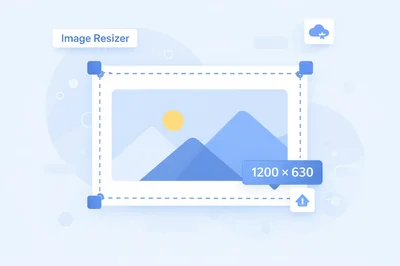
If you need a fast way to image resize a picture for a website, social post, form upload, or product listing, the goal is always the same: get the exact dimensions without turning the file into a blurry mess. That’s why FastToolsy’s Image Resizer exists—it lets you set pixel dimensions or scale percentage and export in common formats, all in the browser.
This guide shows the quickest workflow to image resize confidently: what to change, what to keep, and how to avoid common mistakes that make results look stretched or soft. You’ll also see when to use presets, when to type in custom sizes, and how to handle tricky cases like screenshots, logos, and large camera files.
What image resize actually means (and what it does not)
When people say they want to image resize, they usually mean “change width and height in pixels.” That is different from file size compression. A file can be smaller in kilobytes without changing dimensions, and a file can have new dimensions while the file size stays similar.
- Dimensions are measured in pixels (for example 1200×630).
- File size is measured in KB/MB and depends on format and quality.
- Aspect ratio is the relationship between width and height (for example 16:9).
A good image resize workflow starts by deciding which of these is your real constraint. If a platform rejects your upload because the pixel size is wrong, you need dimensions. If a page is slow because images are heavy, you need compression (often after you image resize).
Quick answer: the simplest way to image resize on FastToolsy
- Open the Image Resizer tool: Image Resizer.
- Drop your file (PNG, JPG, WebP, GIF, or BMP).
- Pick a preset or enter width and height in pixels.
- Choose output format and quality if available.
- Click resize and download.
FastToolsy notes that processing happens locally in your browser, so the file is not uploaded to a server.
Step-by-step: pixel-perfect image resize without distortion
1) Start with your target use case
Your target determines the best dimensions. A blog hero image, a profile banner, and a marketplace thumbnail have different needs. Before you image resize, write down:
- Target width and height (exact pixels or a range)
- Where the image will appear (mobile, desktop, both)
- Whether the platform auto-crops
2) Preserve aspect ratio when the image must look natural
Most “stretched” results happen when you force a new width and height that does not match the original aspect ratio. If the tool offers an option to maintain aspect ratio, enable it for photos and most graphics. If you must hit an exact box size (like a square avatar), you may need to crop first and then image resize.
3) Choose the right output format after you image resize
- PNG: best for sharp edges, logos, UI screenshots, and transparency.
- JPEG: best for camera photos; smaller files but no transparency.
- WebP: modern web format with good quality at smaller sizes.
FastToolsy’s Image Resizer supports common input formats and output options (PNG, JPEG, WebP).
When to use presets vs custom sizes
Presets are ideal when you just want a standard screen-friendly size. FastToolsy includes quick preset buttons (like 1920×1080, 1280×720, and 800×600), which is handy when you frequently image resize for presentations or desktop wallpapers.
Custom sizes are better when a platform requires an exact number. If you’re creating an article image, ad creative, or a featured thumbnail, you’ll often image resize to a non-standard ratio.
Common mistakes people make when they image resize
- Forgetting aspect ratio: forcing a square on a wide photo makes faces look wider.
- Upscaling too far: enlarging a small source can’t invent detail; it often looks soft.
- Mixing up pixels and percent: scaling by 50% halves both dimensions; it’s not the same as choosing 500×500.
- Picking the wrong format: converting a logo to JPEG can introduce artifacts.
- Over-compressing: very low quality settings can create blocky textures.
If you have “odd” spacing or line breaks in image captions or filenames you’re pasting into forms, a text cleanup tool can help; for example, Remove Line Breaks can remove accidental breaks before you upload content alongside the image.
Edge cases: screenshots, logos, and transparent images
Screenshots and UI captures
For screenshots, clarity matters more than file size. You’ll usually image resize down (never up) and export as PNG or WebP to keep text crisp. If your screenshot becomes blurry, try a slightly larger target size, then rely on the website to scale it down in the layout.
Logos and icons
Logos with sharp edges can look fuzzy if you image resize to a size that forces heavy resampling. Use PNG, avoid aggressive compression, and check the result at 100% zoom. For icons, consider multiples (like 128, 256, 512) so you have options.
Transparency
If you need a transparent background, keep PNG or WebP. If you switch to JPEG after you image resize, transparency will be replaced by a solid color.
Two mini-examples you can copy
Example 1: Social preview image
You have a 3000×2000 photo and need a 1200×630 preview. First crop to the right shape if needed, then image resize to 1200×630, export as JPEG (quality around 80–90), and check that text overlays remain readable.
Example 2: Product thumbnail
You have a 2048×2048 product photo and need a 400×400 thumbnail. Because the source is already square, you can image resize directly to 400×400 and export as WebP for a small file that still looks sharp.
How to handle batches and “many resize images” situations
If you need to image resize a lot of files, decide whether “one-at-a-time” quality control is worth it. FastToolsy’s Image Resizer currently focuses on resizing one image at a time for best control.
For bulk work, a practical approach is to standardize your targets. For example, if you’re preparing a folder of photos to edit, write a checklist: crop, resize image to the same width, export to the same format, and name files consistently. That way, even when you image resize repeatedly, your results stay consistent.
Quality tips: getting the cleanest result after you image resize
- Downscale for sharpness: resizing down usually looks great; resizing up rarely does.
- Avoid multiple resizes: repeated resampling can degrade detail—keep one “master” file.
- Use WebP for the web: if your platform supports it, it often gives a better size/quality balance.
- Keep text large enough: small text in images becomes unreadable after you image resize down.
Understanding aspect ratio choices while you image resize
Aspect ratio decisions are where most confusion happens. Here are common patterns:
| Goal | Best approach | Why it works |
|---|---|---|
| Keep everything visible | Scale proportionally (fit) | No cropping; no distortion |
| Fill a fixed box | Crop then resize | Meets exact dimensions |
| Match a platform preset | Use preset dimensions | Faster; fewer mistakes |
If you want a reminder of the “fit vs fill” idea, the Fill/Fit/Stretch model is commonly used in resizing tools and documentation.
Workflow integrations: where image resize fits in real projects
Most creators and teams do not just image resize and stop. Resizing usually sits between other steps:
- Create or choose the source image.
- Crop for composition.
- image resize to your target dimensions.
- Compress if needed (especially for web delivery).
- Upload, then spot-check on desktop and mobile.
If your goal is faster pages, it can help to pair resizing with compression. FastToolsy offers an Image Compressor in its converter tools list.
Accuracy note: what an online image resize tool can and can’t guarantee
A browser-based resizer can reliably change pixel dimensions and export formats, but it cannot magically restore detail lost from a low-resolution source. If your original file is tiny or heavily compressed, the best strategy is to find a higher-quality source before you image resize.
Also remember that different platforms apply their own post-processing. Even after you image resize perfectly, a social network may recompress the upload. The safest approach is to keep your master copy, and re-export when a platform changes requirements.
Related tools worth bookmarking
- Background Remover for quick subject cutouts.
- Color Picker when you need matching brand colors.
- MD5 Hash Generator to verify file integrity after exporting.
- Unit Converter for print sizing math and measurements.
Final checklist before you export
- Did you choose the correct target dimensions?
- Is aspect ratio preserved (or did you crop intentionally)?
- Did you pick a format that matches your use (PNG/JPEG/WebP)?
- Did you preview at 100% zoom to confirm it looks right?
If you follow that checklist, you can image resize quickly and confidently, without the trial-and-error loop.
When you’re ready, open FastToolsy’s Image Resizer, drop in your file, and image resize to the exact dimensions your project needs in under a minute.
Choosing dimensions for web, email, and social
Most teams pick sizes by copying what they see on a competitor’s page, but that can backfire if the layout is different. A more reliable method is to define a few “tiers” that cover nearly every use case: a large hero size, a medium content size, a card size, and a thumbnail size.
- Hero images typically need enough width to look sharp on desktop displays.
- In-article images can be smaller because the content column is narrower.
- Cards and thumbnails should prioritize clarity at small sizes.
Once you define those tiers, you can standardize your workflow. You’ll spend less time guessing and more time making sure the composition is right. Standardization also helps when multiple people contribute assets, because everyone exports to the same targets.
Pixels, DPI, and printing
For print, the conversation often shifts from pixels to inches or centimeters. What matters is the combination of pixel dimensions and the print resolution you intend to use. Many designers use 300 DPI as a common baseline for high-quality prints, but the “right” value depends on viewing distance and printer capability.
A practical rule: start with a high-resolution source, do any cropping first, then export the pixel dimensions you need. If you only have a low-resolution image, changing metadata will not create detail. Instead, find a better original or adjust the design so the image appears smaller in the final layout.
Keeping text readable after resizing
Resizing can destroy small text, especially in screenshots, charts, or promotional graphics. If text is part of the image, treat it like a minimum-size requirement: decide the smallest font size that remains readable on a phone, then work backward to the dimensions that keep those letters clear.
Two habits help:
- Preview at the final display size rather than judging at full-screen zoom.
- Use fewer words in the graphic so each letter can be larger.
File naming and organizing your exports
When you export multiple versions of the same asset, file naming becomes the difference between “done” and “confusing.” A simple convention is: subject-name + size + format. For example: product-mug-400.webp or header-spring-sale-1200.jpg. This makes it easier to spot the right version later, and it reduces duplicate uploads.
If you’re preparing assets for a CMS, you can also include the purpose in the name, like og-image, thumbnail, or hero. That way, you’ll know exactly where each file belongs.
Performance and SEO considerations
Fast pages matter for users and search engines. While this guide focuses on dimensions, performance usually improves when you also pick a modern format and avoid exporting images larger than they will ever be displayed. When an image is oversized, the browser still has to download the full file, even if it is shown smaller on the page.
Three practical checks:
- Match displayed width: don’t ship a 3000px image into a 700px content column.
- Prefer modern formats: WebP is often a strong default for the web.
- Compress carefully: drop quality only until artifacts start to appear.
If your site uses responsive images, you can export a small set of sizes and let the browser pick the best one for each device. This is especially useful for long articles with many visuals.
Accessibility and alt text for images
Resizing helps the visual side, but accessibility requires text alternatives. Whenever an image conveys information (a chart, step-by-step screenshot, or key message), add meaningful alt text in the place you publish it. Alt text should describe the purpose of the image in context, not just list what is visible.
For decorative images that add mood but no information, an empty alt value is often appropriate so screen readers can skip it. The goal is to reduce noise for users who rely on assistive technology.
Troubleshooting: why results sometimes look “wrong”
Blurry results after shrinking
If a downscaled image looks blurrier than expected, it may be because the original is already compressed or noisy. Try exporting to a higher-quality setting, or choose a format that preserves detail for your content type (PNG for sharp UI, JPEG/WebP for photos).
Jagged edges on logos
Jagged edges can happen when the logo is rasterized at a low resolution. If you have access to a vector original (SVG, AI, EPS), export a new raster image at a larger size and then create your smaller versions from that master.
Colors look different
Color shifts can happen due to color profiles or platform re-encoding. If color accuracy is critical, test one sample upload on the platform you’re targeting and compare it to your local export. If the platform changes the look, you may need to adjust your workflow (for example, using a different output format).
Keyword reality check: what people type vs what they mean
Search tools often show variations that reflect how users think. Some people search for resize image when they mean “make the file smaller,” while others search for resize images when they need a batch workflow. You may even see odd phrasing like resizer image, which usually just means “a tool that can change dimensions.” The best content meets users where they are, then clarifies the difference between dimensions, file size, and cropping.
Privacy and safety when working with personal photos
Many people resize images that include sensitive content: IDs for verification, family photos, customer screenshots, or internal product mockups. Before using any tool, confirm whether processing happens locally or whether files are uploaded for server-side processing. A local workflow reduces exposure, especially when you are working on shared networks or public devices.
FastToolsy’s Image Resizer includes a clear note that processing happens in your browser. That means you can make quick dimension changes without creating an account, emailing files to yourself, or relying on a desktop app for basic tasks.
Still, the safest habit is to treat exports as new files. After you download the resized version, check where it saved, rename it clearly, and delete duplicates you no longer need. If you are handling client material, follow your organization’s retention rules and avoid sharing assets through insecure channels.
Frequently overlooked details before you publish
- Orientation: make sure portrait images stay portrait and landscape images stay landscape.
- Metadata: some workflows strip metadata on export, which is usually fine for web delivery.
- Animation: if you start from an animated GIF, confirm whether the export keeps animation.
- Background: if you need clean cutouts, removing the background first can improve results.
These details are easy to miss because the “dimensions problem” feels solved once you see the right numbers. A 10-second final preview can save you an extra upload cycle.
Frequently Asked Questions
Is my image uploaded to a server when I resize it?
FastToolsy’s Image Resizer runs in your browser, so your image is processed locally and is not uploaded to a server.
What formats can I use with the Image Resizer?
You can upload common formats such as PNG and JPG, then export to PNG, JPEG, or WebP depending on your needs.
Why does my resized image look stretched?
Stretching usually happens when the new width and height do not match the original aspect ratio. Preserve aspect ratio or crop first, then resize to the target dimensions.
Can I resize multiple images at once?
The tool is designed for one image at a time so you can check quality and settings per file. For bulk work, standardize your target sizes and repeat the process.