If you’re designing a landing page, building an app screen, or mocking up a document, you often need text that looks realistic before the real copy exists. That’s where a lorem generator helps: it produces readable placeholder blocks in seconds, so you can focus on layout, spacing, and hierarchy instead of writing draft content too early.
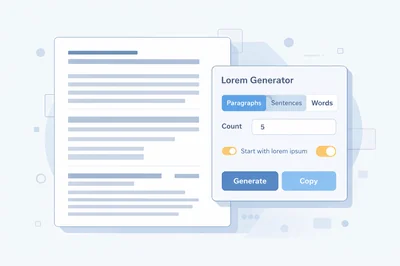
FastToolsy’s Lorem Ipsum Generator lets you choose paragraphs, sentences, or words, set the exact count, optionally start with lorem ipsum, then copy the result instantly. In practice, it’s the fastest way to fill wireframes, Figma frames, HTML templates, and print layouts with consistent placeholder copy.
Quick answer: Open the tool, pick output type, enter a count, enable “Start with lorem ipsum” if needed, click Generate, then Copy.
What a lorem generator is and when you should use it
Placeholder text is a stand-in for real writing. It gives you the visual “weight” of content without forcing product decisions too early. A lorem generator produces that stand-in on demand, which is useful whenever you need to evaluate design rather than meaning.
Common moments you’ll reach for it include early wireframes, component libraries, email templates, UI prototypes, brochure drafts, and documentation themes. If your layout breaks when content grows, placeholder text helps you spot that before launch. If your typography looks cramped or airy, placeholder text gives you a realistic rhythm for line length and paragraph spacing.
In the publishing and design world, lorem ipsum is the best-known placeholder style. It looks like real language, so designers can judge how blocks of text behave, without distracting reviewers with half-finished copy. When used well, it speeds decisions about grids, spacing, and content density.
- Use it to test responsive layouts and “worst case” overflow.
- Use it to check how headings, body text, and captions align.
- Use it to preview PDF exports, print margins, and page breaks.
How to use FastToolsy’s Lorem Ipsum tool step by step
The FastToolsy page is intentionally simple, so you can generate text quickly without extra settings getting in the way. A lorem generator should feel like a utility: predictable inputs, predictable outputs.
-
Choose the output type: Paragraphs, Sentences, or Words. Paragraphs are best for page mockups, sentences are great for UI cards, and words are useful for short labels.
-
Set the count: Enter the number you need. If you’re building a hero section, try 1–2 paragraphs. For article templates, try 6–12 paragraphs.
-
Optional start phrase: Enable the option to start with lorem ipsum when you want the classic opening used in many design reviews.
-
Generate: Click “Generate Lorem Ipsum.” The output appears immediately below.
-
Copy: Click Copy, then paste into your editor, design file, CMS, or code.
Because the tool is browser-based, it’s ideal for quick iterations: generate, paste, adjust, and regenerate until the placeholder matches the length you expect real content to have.
Paragraphs vs sentences vs words: choosing the right output
Not all placeholders are created equal. The best choice depends on what you’re testing: reading flow, spacing, or microcopy length. A lorem generator that offers multiple output modes gives you control over that test.
When to generate paragraphs
Paragraphs simulate editorial content. Use them for blog templates, long-form landing pages, case studies, help-center layouts, or any screen where scrolling and rhythm matter. Paragraph blocks reveal how comfortable your line length is and whether your vertical spacing feels balanced.
When to generate sentences
Sentences are perfect for UI patterns: cards, feature lists, tooltips, onboarding steps, or small content blocks. They let you see how a component behaves with real punctuation and varied word lengths, without producing a wall of text.
When to generate words
Words are the best proxy for labels, buttons, tags, and short headings. If you’re building a navigation bar or testing truncation, a lorem generator that can output a fixed word count makes it easy to simulate short and long labels consistently.
Mini-examples: two fast ways teams use a lorem generator daily
Example 1: Filling a homepage wireframe
A designer builds a homepage layout with a hero, three feature cards, and a testimonial band. They generate 2 paragraphs for the hero description, 3 sentences for each feature card, and 20 words for a testimonial quote. With those blocks in place, spacing problems show up immediately: one card wraps to an extra line and the row height becomes uneven. A quick regenerate and resize fixes it before anyone writes final copy.
Example 2: Testing CMS templates
A developer creates a blog template in a CMS and needs to test how headings, lists, and body text behave across devices. They paste 8 paragraphs from the tool into a draft post, add a few headings and a list, then preview on mobile. If the typography feels too dense, they adjust font size, line height, and margins. Placeholder content keeps the work focused on layout rather than writing.
Both examples use a lorem generator as a “content simulator.” It’s not about meaning; it’s about proving that the design and code handle realistic length.
Common mistakes that make placeholder text less useful
Placeholder text speeds work only when it’s used intentionally. Here are the most common pitfalls that reduce its value, and how to avoid them with a lorem generator.
-
Using one tiny paragraph everywhere: Real pages have variation. Mix short and long blocks so you test overflow and whitespace honestly.
-
Forgetting responsive behavior: A layout that looks fine on desktop can break on mobile. Use multiple paragraph counts to test both short and long content states.
-
Leaving placeholder in production: A classic mistake is shipping with lorem ipsum still on a page. Use a release checklist or content audit to prevent that.
-
Not matching expected tone or structure: If the final copy will include lists, headings, or short snippets, make sure your test content includes those elements too.
The goal is to approximate real content length and complexity. The closer your placeholder mirrors reality, the more confidence your layout decisions deserve.
Edge cases: overflow, truncation, and accessibility checks
Design reviews often miss edge cases until late. A lorem generator helps you surface them early if you use it strategically.
Overflow and wrapping
Generate a long paragraph and paste it into your smallest container. Watch for awkward widows, orphans, and sudden jumps in height. If a card in a grid becomes taller, consider line clamping, equal-height strategies, or responsive reflow.
Truncation and ellipses
For labels and titles, generate 8–12 words and test where truncation happens. If your UI cuts off important information, you may need better hierarchy, more space, or a tooltip pattern.
Screen reader and focus order
Placeholder text isn’t meaningful, but it can still be used to verify that your headings are ordered properly and your focus states move logically through the page. During accessibility testing, replace placeholder with real content before final sign-off, but use placeholder to ensure the structure is sound.
Why teams still prefer classic lorem ipsum in mockups
There are many placeholder styles, including random words, “greeking,” and even realistic English copy. Yet lorem ipsum remains popular because it’s recognizable and visually balanced. It looks like language, but it’s not something reviewers will try to edit in meetings.
When a layout contains meaningful English, stakeholders often start rewriting it immediately. That can derail a design review into copywriting feedback. Using lorem ipsum keeps the conversation on spacing, hierarchy, and interaction design.
If you want that traditional look, enable “Start with lorem ipsum” so the first line matches what most people expect from a lorem generator. If you don’t, you’ll still get visually consistent placeholder text that works for most layout checks.
Workflow tips: pairing a lorem generator with related tools
FastToolsy groups practical utilities together so you can move through a workflow without switching sites. Once you generate placeholder content, you might also need a few adjacent tools to finish a design or prototype quickly.
-
Use Color Picker & Palette Generator to lock your palette and ensure contrast is consistent across components.
-
Use Unit Converter when translating design specs (px to rem, inches to mm for print, or quick physical measurements).
-
Use Currency Converter for pricing mockups or regional storefront prototypes.
-
Use Remove Background to prep product images or avatars for mockups.
These tools don’t replace your main design stack; they remove small points of friction. A good lorem generator is part of that same philosophy: fast, predictable, and easy to paste wherever you work.
Limitations and accuracy notes
A lorem generator is designed for placeholder content, not for generating meaningful writing. It will not reflect your brand voice, product claims, or legal requirements. Use it for layout and testing, then replace it with real copy before publishing.
Also note that different editors may treat whitespace slightly differently when copying and pasting. If you’re seeing unusual spacing, paste into a plain-text field first, or format the destination element to remove extra margins. The FastToolsy tool itself generates predictable plain text output, but your target app may apply its own typography rules.
Best practices for realistic layouts (without overthinking it)
To get the most value from a lorem generator, try to mimic how real content varies. Real pages rarely have identical paragraph lengths. They have short intro sentences, medium body paragraphs, and occasional longer explanations. If every block is the same size, you may accidentally design for an unrealistic “perfect” state.
A simple approach is to build three content states for every major component: short, typical, and long. For example, a feature card might have one sentence in the short state, two sentences in the typical state, and four sentences in the long state. Using the tool, you can generate each state quickly and see how the component behaves.
- Short state: use 8–12 words (label-like) or 1 sentence.
- Typical state: use 2 sentences or a compact paragraph.
- Long state: use 4–6 sentences or 2 paragraphs.
When you test these three states, you can decide whether to allow flexible heights, clamp text, or adjust spacing. That decision is easier when the content length is concrete, and a lorem generator makes it concrete on demand.
Design reviews: keeping feedback on layout, not wording
In team reviews, real text can be a distraction. People naturally react to phrasing, tone, and claims—even when the meeting is supposed to be about layout. By using placeholder text, you prevent “copy debates” from hijacking a design review.
A lorem generator helps by producing neutral content that looks real at a glance. Reviewers can focus on what matters: Does the hierarchy make sense? Do headings stand out? Are line lengths comfortable? Does the page scan well? Do components align across breakpoints?
If a stakeholder insists on seeing real copy, compromise by using real headings and one real paragraph, then fill the rest with placeholder. That keeps the meeting anchored in layout while still providing enough context to evaluate intent. The key is to separate “content decisions” from “presentation decisions,” and placeholder text is an effective boundary.
Developer use cases: testing templates, typography, and performance
Developers use placeholder text differently than designers. Instead of asking “does it look good,” developers ask “does it behave correctly?” A lorem generator makes it easy to test the same template in many conditions without writing a long draft every time.
Here are a few practical development checks where placeholder content helps:
-
Typography baseline: Verify heading sizes, margins, and line-height across browsers. Small CSS differences become obvious with longer paragraphs.
-
Component resilience: Confirm that cards, accordions, and modals can handle longer content without breaking layouts or causing scroll traps.
-
Performance and rendering: Populate pages with many paragraphs to ensure your app’s rendering and virtualization strategies remain smooth.
-
PDF/print output: If you export HTML to PDF, placeholder paragraphs reveal page-break issues and awkward widows/orphans early.
Because the tool output is plain text, it’s also safe to paste into local dev environments, sample fixtures, and test data files. A good lorem generator keeps these checks fast and repeatable.
Print and document layouts: page breaks and spacing checks
Placeholder text isn’t only for screens. It’s also useful when you’re laying out PDFs, reports, proposals, resumes, or marketing collateral. In print, the most common surprises happen at page boundaries: a heading lands at the bottom of a page with no body text, or a single line of a paragraph “orphans” onto the next page.
Use a lorem generator to create blocks long enough to cross page breaks. Then adjust styles like “keep with next,” paragraph spacing, and heading rules. You can also test columns, callout boxes, and footers with realistic content density.
When you’re building templates that others will reuse, this kind of stress test is worth it. A template that handles long content gracefully reduces manual formatting later. The result is fewer last-minute edits and cleaner exports.
Troubleshooting copy and paste: when formatting looks odd
Sometimes you generate placeholder text, paste it, and the destination tool does something unexpected: extra spacing appears, line breaks collapse, or the font looks different than expected. In most cases, the issue is not the lorem generator output—it’s the destination editor applying its own formatting rules.
To debug quickly:
-
Paste into a plain-text field first (like a simple editor) to confirm the text itself looks normal.
-
Paste again into your target tool using “paste without formatting” if available.
-
Check whether the target tool automatically converts newlines into paragraphs, or merges whitespace.
-
If you’re working in HTML, confirm whether your container uses CSS rules like white-space that can preserve or collapse spaces.
If you need to sanitize text you copied from other sources, FastToolsy also offers text utilities that can remove accidental formatting. In most workflows, though, a clean copy from a lorem generator will paste exactly as expected.
Quick checklist before you share a mockup
Before you send a prototype to a client or publish a preview link internally, do a final pass using the lorem generator as your test content so the layout reflects realistic density.
-
Swap short and long states with the lorem generator to confirm components don’t jump unexpectedly.
-
Regenerate a few paragraphs with the lorem generator and verify your spacing still feels balanced on mobile.
-
Paste sentence-length output from the lorem generator into cards and modals to check scrolling and focus behavior.
-
Run one “long page” pass with the lorem generator to catch performance or rendering issues early.
This takes a couple of minutes and prevents the classic surprise where the real copy arrives and breaks a previously “finished” layout.
If you want to speed up wireframes and prototypes, open FastToolsy’s Lorem Ipsum Generator, generate the exact length you need, and paste it into your design or code so you can iterate on layout right away with a dependable lorem generator. For recurring projects, keep the lorem generator in your bookmarks so placeholder content is always one click away.
Final takeaway
A reliable lorem generator is one of those small utilities that saves time every day. It keeps reviews focused on design, helps you test edge cases early, and makes it easy to create consistent mock content for templates, prototypes, and documents. Keep a lorem generator bookmarked so you can generate realistic lengths whenever you need to validate a layout. Then replace placeholders with real copy before launch, and your workflow stays clean from concept to publish with the help of a lorem generator.
Frequently Asked Questions
How do I use the Lorem Ipsum Generator on FastToolsy?
Choose paragraphs, sentences, or words, enter your count, optionally enable “Start with lorem ipsum…”, click Generate, then Copy and paste the result into your project.
When should I generate paragraphs versus sentences or words?
Use paragraphs for page mockups and long-form layouts, sentences for cards and UI blocks, and words for labels, buttons, and truncation tests.
Is lorem ipsum real Latin?
It is derived from Cicero but has been altered over centuries. Today it’s used mainly because it looks like readable text without carrying meaning.
How much placeholder text should I generate for a design review?
Generate enough to match expected real content length. For a section, 1–2 paragraphs is common; for an article template, 8–12 paragraphs can better stress-test spacing and scrolling.