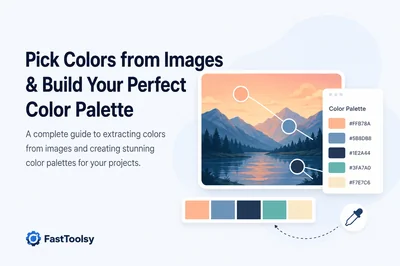
Whether you are matching a logo, recreating a photo's mood, or building a brand kit, the fastest way to get colors right is to sample them straight from a reference image instead of guessing. With a dedicated Color Picker & Palette Generator you can open an image, hover over the exact pixel you care about, and read back its HEX, RGB, HSL, and CMYK values in seconds. This guide walks through sampling precise colors from any image and turning them into a small, consistent palette you can reuse across a website, slide deck, or social post.
Why sample colors from an image instead of eyeballing them
Screens render millions of shades, and the difference between two near-identical blues is invisible to the eye but obvious in code. A color sampler tool removes that guesswork by reading the literal pixel value, so your final HEX matches the source exactly. This matters most when you are:
- Matching a brand color from a logo, screenshot, or product photo.
- Pulling an accent shade out of a photograph to build a themed layout.
- Recovering a HEX code from a design you have an image of but no source file for.
- Checking whether two elements actually use the same color or just look similar.
Working from the literal pixel value also keeps your results repeatable, so the color you copy today is the same one you copy next week from the same image.
Step by step: pick an exact color from an image
The core workflow with a pixel color finder is short and repeatable:
- Open the Color Picker & Palette Generator and load your reference image.
- Move the cursor over the area you want to sample. Zoom in first if the region is small or noisy so you land on the right pixel.
- Click to lock the color. The tool shows the value in HEX (
#RRGGBB), RGB, HSL, and CMYK at once. - Copy the format you need. HEX and RGB are best for web and CSS, while CMYK is the right reference if the design is headed to print.
- Repeat for each distinct color you want, and save each one so you can compare them side by side.
Tips for landing on the correct pixel
- Sample flat areas, not edges. Edges blend two colors and give you a muddy in-between value.
- Avoid highlights and deep shadows when you want the "true" color of an object; sample a mid-tone region instead.
- If a photo is heavily compressed, neighboring pixels can vary. Take two or three samples nearby and pick the value that repeats.
Turn your samples into a small, consistent palette
A palette is not a random pile of swatches; it is a short, deliberate set of roles. A practical starter palette has five slots:
- Primary — your main brand or theme color, used for key actions and headings.
- Secondary — a supporting color that complements the primary without competing with it.
- Accent — a brighter pop reserved for links, buttons, or highlights.
- Neutral dark — for body text and strong outlines (often a near-black, not pure black).
- Neutral light — for backgrounds and surfaces (often a soft off-white).
Sample your primary straight from the image, then use the palette generator to build harmonious companions. Complementary harmony gives you a strong opposite for accents; analogous harmony keeps everything in the same family for a calmer look; triadic harmony spreads three balanced colors for more variety. Keep the total tight: three to five colors is far easier to apply consistently than a dozen.
Check contrast so your palette is actually usable
A palette that looks great as swatches can still fail the moment you put text on it. Use the readable values the color identifier tool gives you to sanity-check pairings before you commit:
- Pair dark text with light backgrounds and light text with dark backgrounds; never trust a mid-tone-on-mid-tone combination without checking.
- Reserve your accent color for small areas. A vivid hue that energizes a button can be exhausting across a whole background.
- Test your text colors at the actual size you will use. Thin, small text needs more contrast than large headings.
- Keep one genuinely light and one genuinely dark neutral so you always have a safe text-and-background pair to fall back on.
Keep your colors consistent across the project
Consistency comes from reusing the same exact values everywhere, not from re-picking similar shades each time. A few habits help:
- Write your palette down once as HEX codes and treat that list as the single source of truth.
- In code, store each color as a CSS variable (for example
--color-primary) so a single edit updates the whole site. - When you hand off assets, share the HEX list alongside the files so collaborators sample from the same numbers, not their screens.
- Before shipping stylesheets, run them through the Code Minifier to trim the CSS that now references your variables.
If your palette is destined for imagery as well, prepare those assets in the same pass: scale graphics with the Image Resizer, shrink file sizes with the Image Compressor, and if you need a branded link or sign-up code you can style a QR Code Generator result to sit cleanly against your new colors.
Related tools & toolkits
Build your visual system end to end with these companions: the Color Picker & Palette Generator for sampling and palettes, the Image Resizer and Image Compressor for preparing graphics, the QR Code Generator for branded links, and the Code Minifier for tidy stylesheets. For grouped sets, browse the Image Toolkit or see All Toolkits. You can find everything from the FastToolsy homepage.
Frequently Asked Questions
How do I find the HEX code of a color in an image?
Open the image in a color picker tool, hover or click on the pixel you want, and the tool reads back its value. You can then copy the HEX (#RRGGBB) along with RGB, HSL, and CMYK for the same color.
What is the difference between HEX and RGB?
They describe the same color in different notation. HEX is a six-digit hexadecimal string common in web and CSS, while RGB lists red, green, and blue as numbers from 0 to 255. Most tools, including this one, show both so you can use whichever your project expects.
How many colors should a palette have?
For most projects, three to five colors work best: a primary, one or two supporting or accent colors, and a light and dark neutral. A small set is far easier to apply consistently than a large one.
Can I sample colors without uploading my image anywhere?
Yes. The Color Picker reads pixels from an image you open directly in your browser, so the image stays on your device while you sample colors from it.
Why does the same color look different in two places?
Lighting, compression, and nearby colors all shift how a shade appears. Using a pixel color finder to read the literal value, then reusing that exact code everywhere, removes the ambiguity that eyeballing introduces.
كيف تلتقط الألوان من الصور وتبني لوحة ألوان بسيطة
سواء كنت تطابق لون شعار، أو تعيد بناء أجواء صورة، أو تجهّز هوية بصرية، فإن أسرع طريقة للحصول على الألوان الصحيحة هي التقاطها مباشرة من صورة مرجعية بدلاً من التخمين. باستخدام أداة منتقي الألوان ومولد اللوحات يمكنك فتح صورة، والمرور بالمؤشر فوق البكسل الذي يهمك، وقراءة قيمته بصيغ HEX وRGB وHSL وCMYK خلال ثوانٍ. يشرح هذا الدليل كيف تلتقط ألواناً دقيقة من أي صورة وتحوّلها إلى لوحة صغيرة ومتناسقة تعيد استخدامها في موقعك أو عروضك أو منشوراتك.
لماذا تلتقط اللون من الصورة بدل التخمين
تعرض الشاشات ملايين الدرجات، والفرق بين لونين أزرقين متقاربين قد يكون غير مرئي للعين لكنه واضح في الكود. تزيل أداة منتقي الألوان هذا الالتباس لأنها تقرأ قيمة البكسل الحرفية، فيطابق كود HEX النهائي المصدر تماماً. وهذا مفيد عند مطابقة لون علامة تجارية من شعار، أو سحب درجة مميزة من صورة فوتوغرافية، أو استعادة كود لون من تصميم لا تملك ملفه الأصلي. والاعتماد على قيمة البكسل الحرفية يجعل النتيجة قابلة للتكرار، فاللون الذي تنسخه اليوم هو نفسه الذي تنسخه لاحقاً من الصورة ذاتها.
خطوات التقاط لون دقيق من صورة
سير العمل قصير وقابل للتكرار:
- افتح منتقي الألوان ومولد اللوحات وحمّل صورتك المرجعية.
- مرّر المؤشر فوق المنطقة المراد التقاطها، وكبّر العرض أولاً إن كانت المنطقة صغيرة لتصيب البكسل الصحيح.
- انقر لتثبيت اللون، فتظهر القيمة بصيغ HEX وRGB وHSL وCMYK دفعة واحدة.
- انسخ الصيغة التي تحتاجها: HEX وRGB للويب وCSS، وCMYK إن كان التصميم متجهاً للطباعة.
- كرّر العملية لكل لون مميز واحفظه لتتمكن من المقارنة جنباً إلى جنب.
التقط الألوان من مناطق مسطحة لا من الحواف، وتجنّب البقع شديدة الإضاءة أو الظل عندما تريد اللون الحقيقي للعنصر.
حوّل عيناتك إلى لوحة صغيرة متناسقة
اللوحة الجيدة ليست كومة عشوائية من الألوان بل مجموعة قصيرة بأدوار واضحة: لون أساسي، ولون ثانوي مكمّل، ولون مميز للأزرار والروابط، ودرجة محايدة داكنة للنص، وأخرى فاتحة للخلفيات. التقط اللون الأساسي من الصورة ثم استخدم مولد اللوحات لتوليد رفقاء متناغمين عبر التناغم المكمّل أو المتشابه أو الثلاثي. اجعل العدد محصوراً بين ثلاثة وخمسة ألوان حتى يسهل تطبيقها باتساق.
تحقق من التباين وحافظ على الاتساق
قد تبدو اللوحة رائعة كعينات لكنها تفشل عند وضع نص فوقها، لذا اجمع النص الداكن مع الخلفيات الفاتحة والعكس، واحجز اللون المميز للمساحات الصغيرة. وللاتساق، دوّن اللوحة مرة واحدة كأكواد HEX واعتبرها المرجع الوحيد، وفي الكود خزّن كل لون كمتغير CSS لتحديث الموقع بأكمله بتعديل واحد. عند تجهيز الصور المرافقة، استخدم Image Resizer لضبط الأبعاد وImage Compressor لتقليل الحجم، ثم نظّف أوراق الأنماط عبر Code Minifier.
الأسئلة الشائعة
كيف أجد كود HEX للون داخل صورة؟
افتح الصورة في أداة منتقي الألوان، ومرّر أو انقر على البكسل المطلوب، فتقرأ الأداة قيمته. بعدها يمكنك نسخ HEX إلى جانب RGB وHSL وCMYK لنفس اللون.
ما الفرق بين HEX وRGB؟
كلاهما يصف اللون نفسه بترميز مختلف؛ HEX سلسلة ست خانات سداسية عشرية شائعة في الويب، بينما RGB يسرد الأحمر والأخضر والأزرق بأرقام من 0 إلى 255. تعرض الأداة الصيغتين لتستخدم ما يناسب مشروعك.
كم لوناً ينبغي أن تضم اللوحة؟
غالباً يكفي من ثلاثة إلى خمسة ألوان: أساسي، ولون أو لونان داعمان أو مميزان، ودرجة محايدة فاتحة وأخرى داكنة. المجموعة الصغيرة أسهل في التطبيق باتساق.
هل يمكنني التقاط الألوان دون رفع صورتي؟
نعم. أداة منتقي الألوان تقرأ وحدات البكسل من صورة تفتحها مباشرة في متصفحك، فتبقى الصورة على جهازك أثناء التقاط الألوان منها.